This is another post for beginners and you will learn about docker toolbox first-time use. Also, there are some basic commands mentioned which certainly be used very frequently. Click here to read the previous post.
Using Docker quick-start terminal
Once you launch the docker terminal, it will spin-on the default machine and boot will boot it up with one IP address. While using the quick-start terminal you can run docker commands or alternatively, you can use command prompt for windows to run same commands.
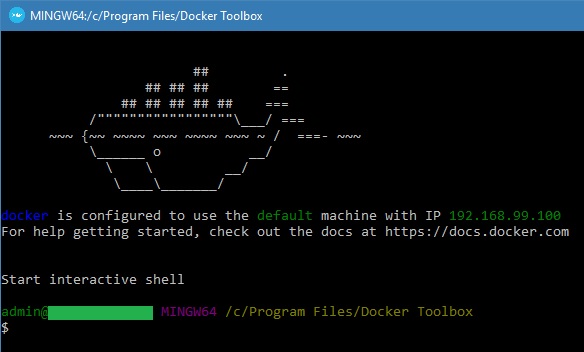
Type the commanddocker run hello-world and press RETURN. If everything goes fine, you will see this output
|
1 2 3 4 5 6 7 8 9 10 11 12 13 14 15 16 17 18 19 20 21 22 23 24 25 26 27 28 29 30 31 32 33 34 35 36 37 38 39 40 41 42 43 44 45 |
$ docker run hello-world Unable to find image 'hello-world:latest' locally Pulling repository hello-world 91c95931e552: Download complete a8219747be10: Download complete Status: Downloaded newer image for hello-world:latest Hello from Docker. This message shows that your installation appears to be working correctly. To generate this message, Docker took the following steps: 1. The Docker Engine CLI client contacted the Docker Engine daemon. 2. Docker Engine daemon pulled the "hello-world" image from the Docker Hub. (Assuming it was not already locally available.) 3. The Docker Engine daemon created a new container from that image which runs the executable that produces the output you are currently reading. 4. The Docker Engine daemon streamed that output to the Docker Engine CLI client, which sent it to your terminal. To try something more ambitious, you can run an Ubuntu container with: $ docker run -it ubuntu bash For more examples and ideas, visit: https://docs.docker.com/userguide |
Useful docker commands
You need to run a couple of commands and here is the brief description for each one of them. Furthermore, you can refer to the detailed information in the official documentation.
1. docker pull nginx This will pull the nginx image from docker hub repository.
2. docker run xxx This will run some commands as per your requirements.
3. docker container ls -a You may need to run this command to check the details for all containers
4. docker container stop xxx The container can be gracefully stopped by mentioning the name of the container. Similarly, replace Stop keyword with Start to start the container.
docker-machine stop It will gracefully stop the docker machine and the VirtualBox default machine will be stopped in the backend. As a result, you will be able to preserve all the changes and state of the containers and docker machine.
Furthermore, there are plenty of other commands available to manage containers and docker machine that can use used to achieve certain docker functionality. Finally, in the next post, we will learn how to run Deluge torrent UI in Docker to isolate torrent software from windows.